TL;DR: use rsync

I just got a massive dataset that’s a raw recorded video, and I want to copy it to the server to process it. The size of the dataset is around 210 GB un(zipped|tar).
Constraint
- I do not have the physical connection to the server.
- The dataset files are around 210 GB and consist of multiple raw video and pkl files.
- The available space in the server is around 250 GB
I cannot zip the entire dataset, but can only copy each file to the server.
First Attempt: Copy Files Through AnyDesk
AnyDesk is a lightweight remote desktop software that allows users to securely access and control computers from anywhere in the world. It’s fast, reliable, and designed for both personal and professional use — ideal for remote support, online collaboration, or accessing files and applications on another device.
My professor gave me the AnyDesk ID + password and the user’s password to access the machine.

AnyDesk has a simple file manager interface that you can drag and drop files over its interface. For simple tasks, e.g., copying small files or not as large, could be accomplished easily, but not for 210 GB files.
I tried to use it and sit for several hours and thinking about the past decisions of my life, whether I am making this decision correctly to use the GUI to copy files? As far as I remember, we have scp to copy a file over the internet. Why don’t we use that
Upload speed is capped around ~10–15 MB because we transfer through AnyDesk’s server, which the another cost we pay for ease of use.

It’s good enough, but its speed is quite capped. Let’s meet our Unix’s old friend, scp .
Second Attempt: SCP (Secure Copy Protocol)

SCP (Secure Copy Protocol) is a command-line tool used to transfer files securely between computers over an SSH connection. It encrypts both the files and authentication details, ensuring safe data transfer. SCP is simple and efficient — commonly used by developers and system administrators for copying files between local machines and remote servers.
Since I’m at the university, why don’t we leverage the same local network to transfer files? This could be faster; however, I’m not sure how much it was, just give it a try.
Basic usage:
Copy a single file:
$ scp ./dataset-folder/ user@192.168.1.100:/home/user/Documents
Copy the entire folder and files underneath:
$ scp -r ./dataset-folder/ user@192.168.1.100:/home/user/Documents
The average upload speed is around ~20 MB, and if we do some math to estimate the remaining time, it would take around 3 hours to complete.

It has been reduced from ~5.9 hours to around 3 hours. That’s twice the original estimation. 😗
Meanwhile, it’s uploading, I hop around the internet, and I want to know if there's another tool for these tasks. Then I found a new friend, rsync .
Third Attempt: rsync

rsync is a powerful file transfer and synchronization tool that efficiently copies files between local and remote systems. Unlike scp, it transfers only the changes (differences) between files, saving time and bandwidth. It’s commonly used for backups, mirroring directories, and keeping remote servers in sync. rsync also supports options for compression, permission preservation, and incremental updates.
Basic usage:
Here is a command that I like and added some arguments to make it fit my use case. Let’s unpack these arguments.
$ rsync -au -v -z --progress --stats ./dataset-folder/ user@192.168.1.100:/home/user/Documents
- -a → Archive mode — preserves permissions, ownership, timestamps, symbolic links, etc.
- -u → skip files that are newer on the destination (don’t overwrite newer ones).
- -v → show detailed output of what’s being copied.
- -z → compress file data during transfer to save bandwidth.
- --progress → show progress during transfer
- --stats → give some file-transfer stats
The origin of the command doesn’t show the status report of the current progress.
The interesting part is that the Average speed: ~35 — 50 MB/s. This would take only 1.6 hours to finish copying all of the dataset files.

In contrast, not only upload files to the server, rather, download or sync files from the server to the client by just switching the argument.
rsync [options] username@remote_host:/path/to/remote/directory /path/to/local/destination
What about Network failure or Server Restart?
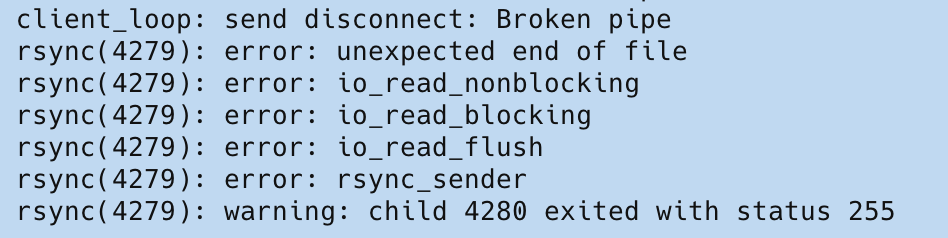
While I was writing this blogpost, the server just restarted while I was copying with it rsync , and I could re-execute the same command to restore the progress.
You can’t do this scp because it’ll override all files instead of checking and appending, or you keep track of every file yourself, or you need to have some custom command to do such.
Total copying time of 250 files, total size 210 GB, to complete took around 1:55 hours might be the fluctuation of the network or uncontrollable variables.
Now I’m very happy with this, and I came back home early. Thanks for reading, and see you in the next chapter.
That’s all, I hope you can revisit this blog when it’s needed.
References:
Better Way To Copy Large Files to the Server was originally published in Ayuth’s Story on Medium, where people are continuing the conversation by highlighting and responding to this story.